Part I: Getting Started
1 About MSiReader v3.12 Freeware, Professional and BioPharma Versions
Collectively, Part I: Getting Started and Freeware (this section), Part II: User Guide – Basic Functions, Part III: User-Guide – Advanced Functions and Part IV: User Guide - BioPharma are included in this user manual, which serves as a comprehensive guide with examples of how to use MSiReader to support your research. Part I: Getting Started and Freeware describes computer requirements and installation instructions as well as how you can customize your copy of MSiReader to better suit your specific projects. Moreover, it contains a new mode of MSiReader called Freeware, which are tools that are available to the MSI Community for free even after the trial version expires. Part II: User Guide – Basic Functions provides a step-by-step guide for the basic functions in MSiReader; the functionality outlined in the ‘User Guide – Basic Functions’ are commonly and simple functions. Conversely, the functionality contained within Part III: User-Guide – Advanced Functions and Part IV: User Guide – BioPharma are more sophisticated data analysis tools. This portion of the user manual provides the underlying theory and a guide for the advanced functions in MSiReader to support mass spectrometry imaging as well details on the BioPharma mode. Throughout these four sections in this user manual, data files are provided for most of the functions in MSiReader so that the end user can replicate the tool prior to applying it to their own data. The MSiReader data sets can be downloaded HERE; in each folder is also a README file to understand how to get started. Please check our website for video tutorials to walk you through different workflows including installation of the software (https://msireader.com/support). The beginning of this user manual also provides the following information: What is MSiReader? Link to the End-User License Agreement (EULA), Copyright Information, Citing MSiReader in your published research and Release Notes for each version. A list of the references (§9) cited throughout this manual can be found at the end of the manual.
What is MSiReader?
MSiReader v3.12 and all accompanying documents are based, in part, on MSiReader v1.03 which was developed from 2012-2022 at North Carolina State University with funding generously provided from NIH (R01GM087964)1,2. MSiReader was developed as a desktop application and, from the outset in 2012, it was designed to be vendor-neutral and able to handle High Resolution Accurate Mass (HRAM) data without data compression, binning or loss of dynamic range, and to serve as an effective tool for building customized solutions for the MSI community with input from the MSI community. In 2021, MSI Software Solutions, LLC was formed and received the exclusive license from NC State University to transform the platform to better support the entire MSI community. In 2023, a BioPharma mode was added to support high throughput screening (HTS) and high content (phenotypic) screening (HCS). In 2024, we added the Freeware mode to share tools written by others but shared via the MSiReader GUI. These tools are absolutely free.
MSiReader (except Freeware mode) is a subscription-based software program for MSI and BioPharma and is designed with an architecture which focuses on the following key attributes: vendor neutrality, intuitive GUI’s, computational efficiency, generation of publication-quality images, while also supporting all MSI ionization methods and HRAM data. The overarching goal of MSiReader is to provide a research-based productivity suite of tools and functions which are constantly evolving to support the needs of the MSI community. Moreover, the new BioPharma mode is offered with a slightly higher cost paid subscription (BioPharma mode includes the MSI Mode) and was written to support HTS/HCS experiments. Additionally, MSiReader is written with an intuitive graphical user interface (GUI) which enables researchers to read and process their MSI and HTS/HCS data in a computationally efficient and effective manner. MSiReader v3.12 is compatible with the common MS file sharing formats and offers a wide range of data analysis features. These features are being improved and expanded upon and will be included in future releases. MSiReader also outputs high-resolution publication-quality figures. A small dataset is provided in the installation folder to check for proper installation. This dataset is of little value for any other purpose. Please do not hesitate to contact us through our website www.msireader.com or by email at support@msireader.com for any suggestions to improve the software, user manual or to report any issues.
1.2 EULA for MSI Software Solutions, LLC
The end-user license agreement (EULA) can be found on our website at (https://msireader.com/docs/MSiReader_License.pdf). The EULA must be agreed to prior to installing the software on your computer.
1.3 Copyright
MSiReader v3.12
First Release January 2, 2023
Copyright © 2022-2024 MSI Software Solutions, LLC
Copyright © 2012-2022 – North Carolina State University
All rights reserved. November 27, 2024.
1.4 Citing MSiReader v3.12
If you use MSiReader in your publications, please cite the software in your experimental section as: MSiReader v3.12 (MSI Software Solutions, LLC, Raleigh, NC). MSiReader v3.12 is based on the peer-reviewed and copyrighted MSiReader platform with the following two key citations.1,2 For a complete list of publications reporting different functions and/or applications of MSiReader, as well as other authors who have cited our work, please see our website:
https://msireader.com/publications
1.5 Freeware Version
We are now sharing new tools, which are quite advanced, for free using MSiReader as a launch point. These tools are written in a variety of programming languages including MATLAB, Python, and R and are launched from the MSiReader main GUI. The end-user does not need to know how to use these different programming languages, the tools are embedded into the code. However, as we add new tools to the Freeware version, the end-user will need to download and add programs to their computer (e.g., Python) – this is accomplished by MSiReader making it very easy to use these free tools.
The first two tools that are Freeware are the AutoQC file convertor (to get data structure in the proper format) and Supervised Learning for Instrument Classification and Evaluation for Mass Spectrometry Imaging (SLICE-MSI). These two tools require that the end user has Python downloaded onto their computer. The external tools depend on the specific Python version that is installed on the user's computer, so if users see a run-time error related to Python when they run such a tool, then installing the latest Python version might resolve the problem. MSiReader, upon launching either of these two tools, will check to determine if the end-user has Python on their computer, if not, it will provide directions to download this to your computer (as shown below). Importantly, as other Python based tools are added to MSiReader, this process will only require a quick locate step but not require downloading Python.
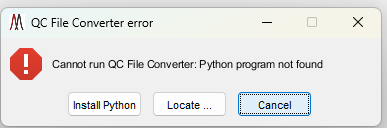 When the Trial version expires these tools will remain available in the Freeware version. Of course, they are also active in MSiReader Pro and BioPharma as well but they do not require a license. The end-user decides that they would like to use these tools, they click on the Main Menu QA/QC and the select either the AutoQC file convertor or the SLICE-MSI tools. Let’s assume that the end user does not have Python on their computer.
 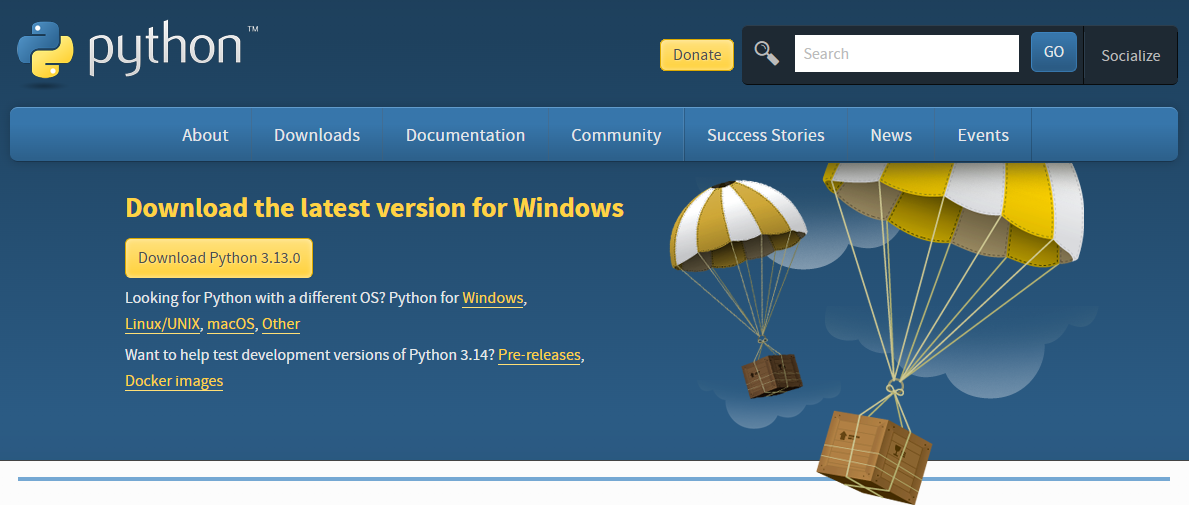 Please select the AutoQC file converter from the QA/QC menu – the warning subGUI shown above will be displayed. Upon selecting Install Python, the user will be taken to the download Python page as shown below.
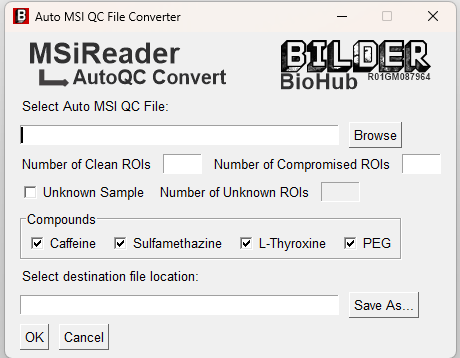 Click on Download Python and then run the executable to install Python on your computer. It should indicate that the setup was successful. Next, go back to MSiReader and re-launch the AutoQC file converter. The subGUI below should be displayed just as before but this time, choose locate. It will open a file explorer box and you will then choose Python(version number) subfolder, then select the Python.exe file then OPEN. The subGUI for the AutoQC file converter will open and is shown below.
The help file for this tool is being written and will be available shortly as a link from the GUI shown above. Note, subsequent uses of this freeware program will not require these steps – it will automatically run.
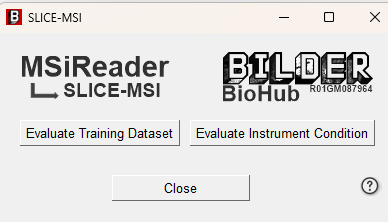 Next, launch the SLICE MSI tool. MSiReader identifies that Python is on the computer and where it is located. The subGUI should just appear as shown below.
The help file for SLICE-MSI is already available – just click on the ? and the user manual will open.
We will be adding more Freeware tools in the future and MSiReader will serve as a convenient portal to disseminate them.